[ fcp://@fc.onlinehelp.com,%237600229/En/OnlineHelp/Web%20Help/LW2 ]Contents [ fcp://@fc.onlinehelp.com,%237600229/En/OnlineHelp/Web%20Help/LW31 ][Image:81203_43854_21.png][ fcp://@fc.onlinehelp.com,%237600229/En/OnlineHelp/Web%20Help/LW42 ][Image:81203_43840_19.png] [Marker][ fcp://@fc.onlinehelp.com,%237600229/En/OnlineHelp/Web%20Help/LW32#The reading pane ]The reading pane [ fcp://@fc.onlinehelp.com,%237600229/En/OnlineHelp/Web%20Help/LW32#Opening the reading pane ]Opening the reading pane --------------- [Marker]The reading pane When the reading [ fcp://@fc.onlinehelp.com,%237600229/En/OnlineHelp/Definitions/L2018 ]pane is open, it is displayed under or to the right of the main pane. The reading pane displays the contents of any object selected in the main pane. For example, a selected message or document opens in this pane. You can work with objects in the reading pane just as you do when they are opened in the main pane. [ fcp://@fc.onlinehelp.com,%237600229/En/OnlineHelp/Web%20Help/LW32#Top ]Top --------------- [Marker]Opening the reading pane To open the reading pane, click this button: [Image:892006_13851_0.png] This button is only visible if you have the navigation pane open. It [ fcp://@fc.onlinehelp.com,%237600229/En/OnlineHelp/Definitions/L2035 ]toggles through three states. To move the reading pane to the right of the main pane, click this button again. To close the reading pane, click this button a third time. [ fcp://@fc.onlinehelp.com,%237600229/En/OnlineHelp/Web%20Help/LW32#Top ]Top
   
LC9004
 
 
Home  •  Help  •  Client Help  •  Instant Messaging  •  LC9004
Contributing to instant messages
Leaving instant messages


Contributing to instant messages
To contribute to an instant message:
1       Type your input in the input pane of the Instant Message form.
You can format your input and embed pictures and other files just as you can in any content. You can also double-click embedded pictures to open them in a viewer window.
While you type your input, this icon tells other participants that you are preparing to send input:
93003_12523_0.png
2       Click Send or press Enter/Return.
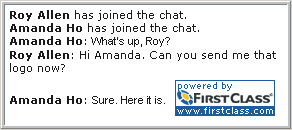
As participants enter the instant messaging session and contribute to it, the transcript pane fills with everyone's input.
6282004_41241_0.png
Top


Leaving instant messages
When you are ready to leave the instant messaging session, close the Instant Message form. Other participants are notified that you have left.
If you will be unavailable for awhile, but don't want to leave the instant message permanently, you can make this icon appear beside your name in the "Participants" list, to let other participants know that you aren't currently available:
93003_12702_1.png
To do this, click Pause. When you are ready to rejoin the instant messaging session, click Pause again to remove the icon, or just send more input.
Top